
Hate the New Look? How to Make Windows 11 Feel Like Windows 10 (or Even 7)
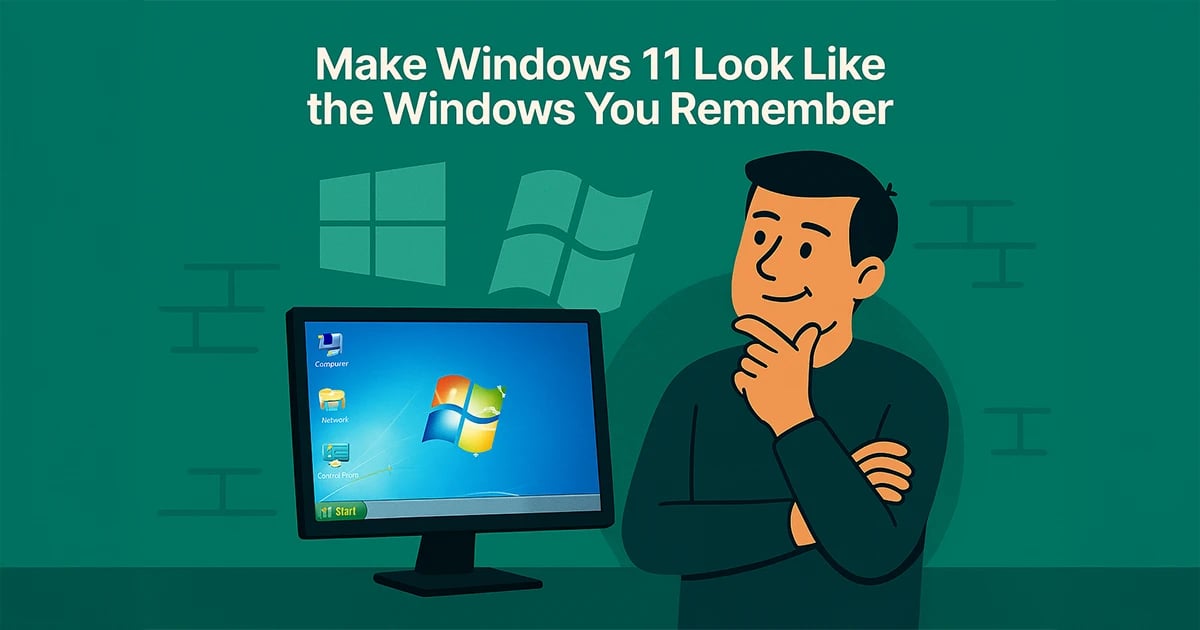
You have two real options
Got a new PC and feeling a little lost? You are not imagining it. Windows 11 changed a lot, and the Start menu, taskbar, and menus can feel unfamiliar if you are coming from Windows 10 or Windows 7.
The good news is that you do not have to live with it exactly the way Microsoft set it up. You can either make a few small adjustments and learn the new layout, or customize Windows 11 so it feels much more like the version you already liked.
- Option 1: Give the new layout a fair chance. Simple changes like moving the Start button back to the left can make Windows feel less foreign right away.
- Option 2: Customize it. If you miss Windows 10 or Windows 7, there are good tools that can bring back a more familiar Start menu, taskbar, and overall look.
Start with the easy built-in fixes
Before installing anything, try the simple changes first. Adjusting taskbar alignment, turning off animations you do not like, and making a few layout tweaks in Settings can go a long way.
For some people, that is enough. For others, it just confirms that they really do want the older layout back. Either way, you learn quickly what level of change you actually need.
Tools that can make Windows 11 feel like home again
- StartAllBack: Brings back a more classic Start menu and taskbar, including a Windows 7 or Windows 10 style feel.
- Open-Shell: A free open-source option for people who want a classic Start menu with a lot of customization.
- WindowBlinds: Useful if you want broader visual theming, not just a different Start menu.
- ExplorerPatcher, WinToys, and Windhawk: Better for people who want deeper tweaks and are comfortable making more detailed changes.
Download from places you trust
If you decide to customize Windows 11, stick with trusted sources like the official developer site, GitHub, Ninite, MajorGeeks, or Stardock. Random "free download" sites are where people get burned by junk installers and malware.
Make Windows work for you
Windows 11 does not have to stay locked into Microsoft's default look. With the right settings and a couple trusted tools, you can make it feel a lot more familiar without turning it into a mess.
If you would rather skip the digging, downloading, and tweaking, I can help get your PC set up so it feels comfortable again.
Need a Hand With This?
If this issue is still eating up your time, I can help you sort it out and get your tech working again.