
Why Do Websites Keep Asking to Send Me Notifications?
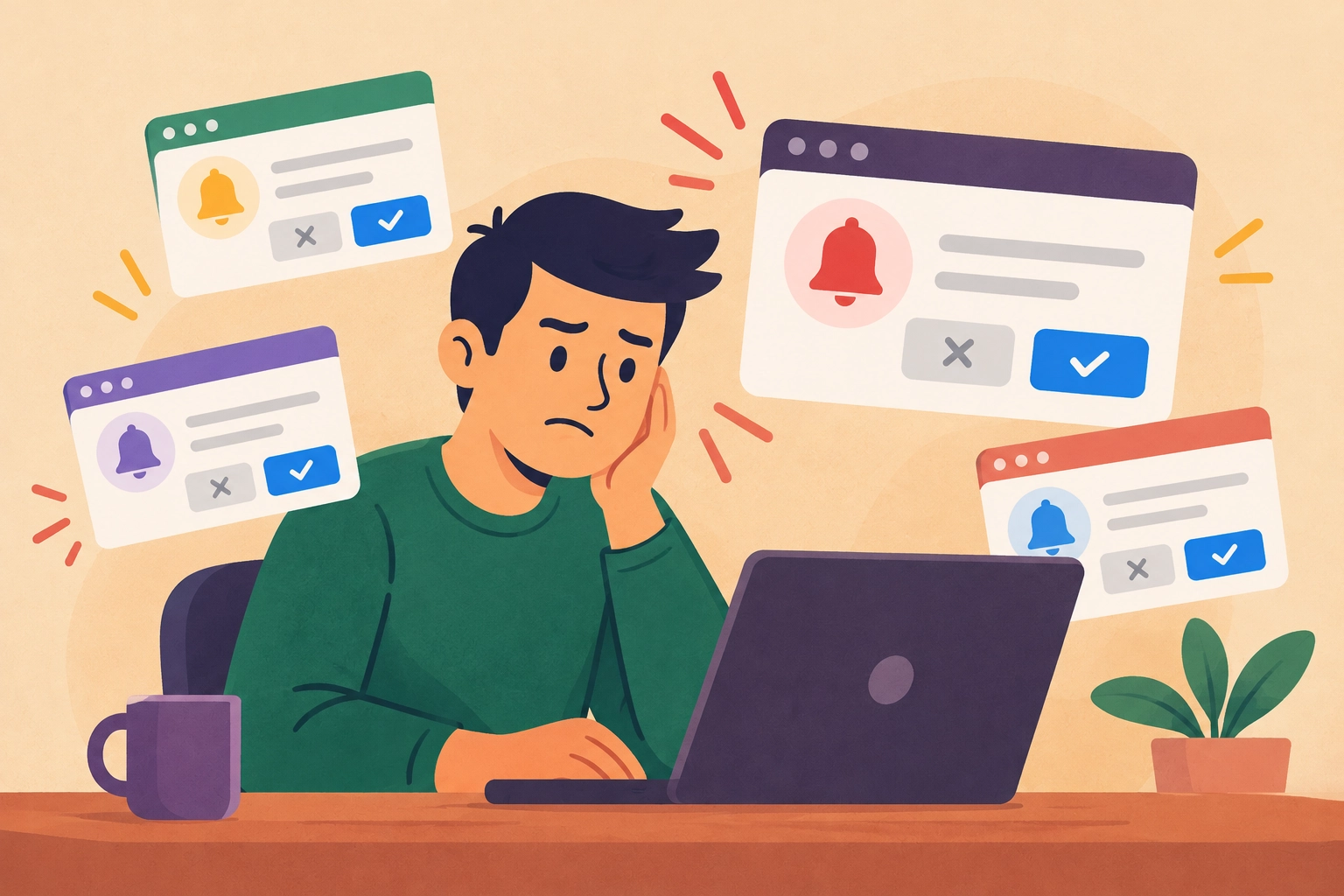
What did clicking Allow actually do?
You visit a website and it asks to send notifications. Clicking Allow makes the question disappear, but it also gives that site permission to send browser alerts.
Those alerts can appear even when you are not viewing that site's page, depending on your browser and device settings.
Some are useful, such as reminders or weather updates. Others are a steady stream of ads or alarming messages you never wanted.
A notification is not a computer diagnosis
An alert from a website claiming your computer has a virus is not proof that anything is infected. It may just be a message from a site you previously allowed.
Do not call a number, download a cleaner, or pay someone because of that alert. Check which website sent it instead.
This is different from a pop-up window or a browser redirect. Removing notification permission can stop that site's alerts without resetting your entire browser.
Take back the permission
- Open your browser settings: Look for Notifications under Site Settings or Permissions. In Chrome on a computer, use Settings > Privacy and security > Site Settings > Notifications.
- Review allowed websites: Find the site sending the unwanted alerts and change its permission to Block. Removing an entry may let it ask again.
- Stop new requests: Most desktop browsers also let you prevent websites from asking to send notifications. Menu names vary.
You can usually decline notifications and keep using the website. Only allow them when you actually want the updates and trust the source.
If a page says you must click Allow to prove you are human, leave it. A notification permission request is not a normal human-verification step.
Need a Hand With This?
If this issue is still eating up your time, I can help you sort it out and get your tech working again.